
Microsoft has officially sunset the web-hosted Azure DevOps Demo Generator. For DevOps engineers, cloud architects, and candidates preparing for certifications like the AZ-400, the tool remains an essential utility to spin up sandboxes populated with source repositories, sprint boards, and CI/CD pipelines.
Instead of installing the full 10GB+ Visual Studio IDE, you can compile and execute the open-source generator directly from Visual Studio Code using the lightweight .NET SDK.
Prerequisites
- Visual Studio Code
- .NET SDK (Download and install the runtime engine from Microsoft)
- An active Azure DevOps Organization
Step 1: Adjust Azure DevOps Organization Policies
By default, Azure DevOps restricts external API interactions. You must enable OAuth access:
- Navigate to Organization Settings (bottom-left corner of your dashboard).
- Under the Security section, select Policies.
- Toggle Third-party application access via OAuth to On.
Step 2: Generate a Personal Access Token (PAT)
The local CLI tool needs permissions to provision work items, repositories, and build definitions in your organization.
- Open User Settings (gear/profile icon in the top-right) and select Personal access tokens.
- Click New Token and assign a name (e.g.,
DemoGenLocal). - Set the scope to Full access.
- Click Create and immediately copy the token value to a safe scratchpad.
Step 3: Clone the Repository & Fix Working Directory
Running the generator from the root folder causes path resolution errors (such as TemplateSettings.json file not found). To avoid this:
- Clone or download the open-source code from the AzDevOpsDemoGenerator GitHub Repository.
- Open the cloned folder inside Visual Studio Code.
- Open the integrated terminal (
Ctrl + `) and change your working directory directly into the generator project subfolder:
Bash
cd src/ADOGenerator
Step 4: Run the Generator & Select a Template
Compile and run the project:
Bash
dotnet run
When prompted, select Option 1 (Create a new project using the demo generator project template). The tool provides over 60 pre-built templates across several categories:
| Category | Index Range | Featured Scenarios & Tech Stacks |
| General Apps | 1 – 5 | eShopOnWeb (GitHub Advanced Security), Tailwind Traders (.NET/React), PartsUnlimited (Scrum eCommerce), MyShuttle (Java/Tomcat), ContosoAir (Node.js/CosmosDB) |
| DevOps Labs | 6 – 21 | Terraform, Ansible, LaunchDarkly feature flags, Azure Machine Learning, Docker, AKS, Selenium testing, SonarQube quality analysis, and Python/Django |
| Microsoft Learn Modules | 22 – 45 | Dedicated lab setups for multi-stage YAML pipelines, Azure Artifacts, Bicep IaC testing, JMeter load testing, and self-hosted build agent configs |
| Cloud Adoption Framework | 50 – 63 | Enterprise landing zones, server migration planning, SQL migration backlogs, and Azure Purview unified data governance |
| FastTrack & Community | 46 – 49, 64 | Azure Sentinel DevOps, NIST 800-171 compliance work items, WVD guidance, SAP on Azure, and Bicep IaC migrations |
Step 5: Provision the Project
Select your template (e.g., 3 for PartsUnlimited), choose authentication method 2 (Personal Access Token), and input your organization name and PAT string:
Plaintext
Enter the template number from the list of templates above:
3
Template 'PartsUnlimited' is present.

Choose authentication method: 1. Device Login using AD auth 2. Personal Access Token (PAT)
2

Enter your Azure DevOps organization name:
<your-organization>

Enter your Azure DevOps personal access token:
************************************************************************************

Enter the new project name:
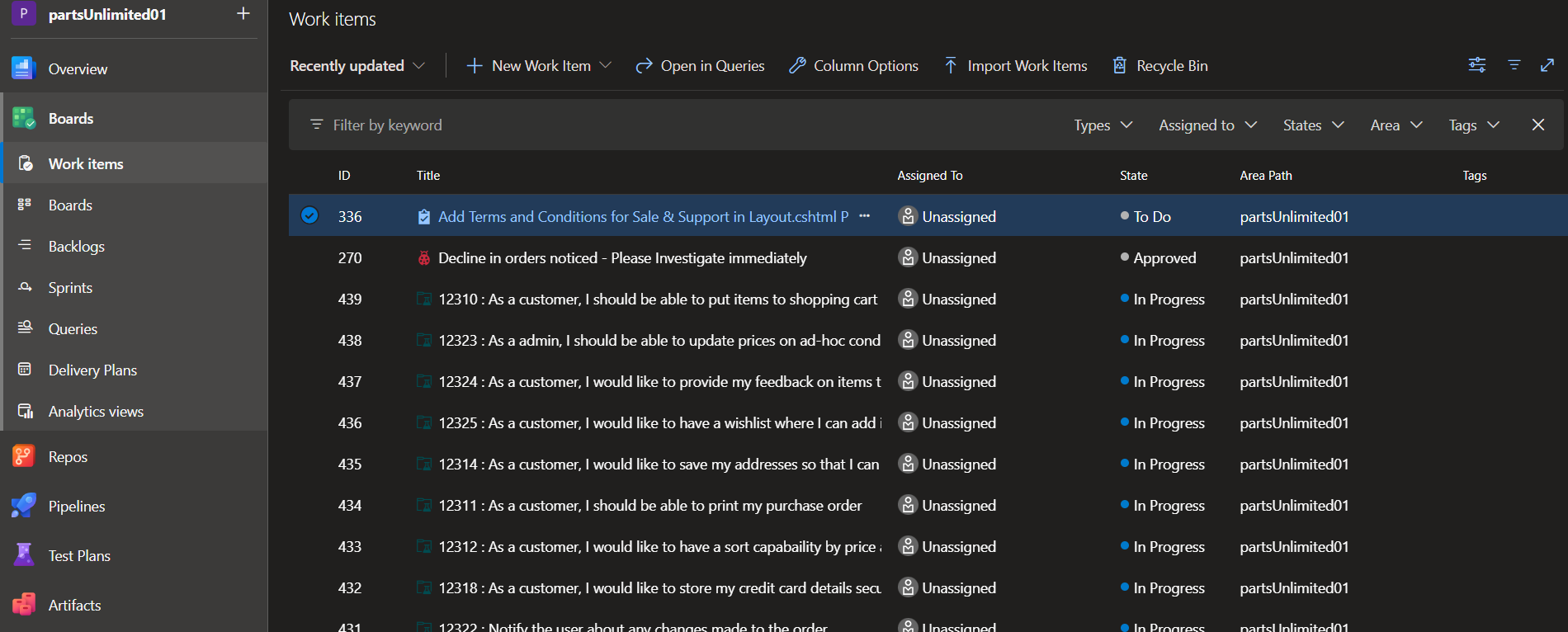
partsUnlimited01
Creating project 'partsUnlimited01' in organization '<your-organization>' using template from 'PartsUnlimited'...
Project partsUnlimited01 created
PUL-DB team created
PUL-DB team area created
PUL team created
PUL team area created
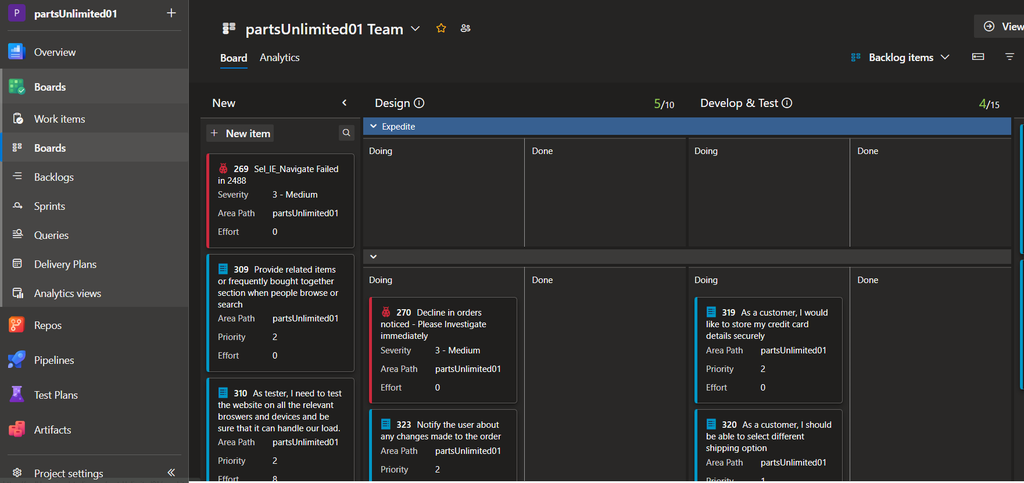
Board-Column, Swimlanes, Styles updated
Importing source code
Source code imported to PartsUnlimited repository
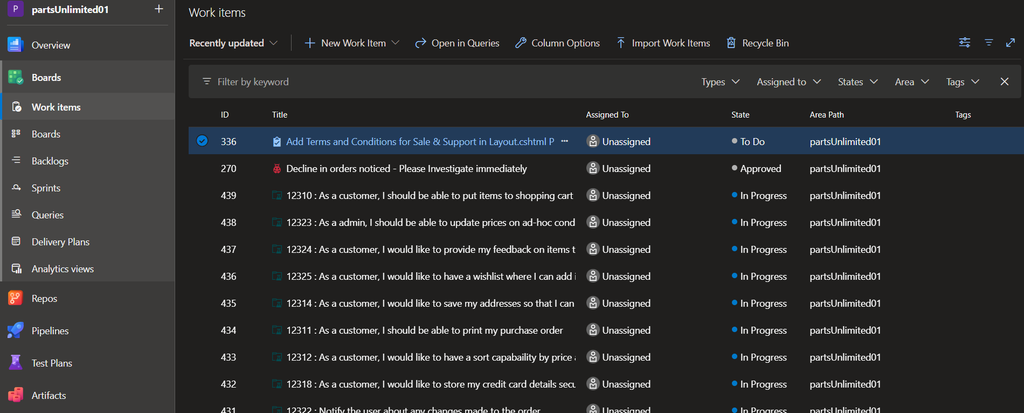
Work Items created
Build definition created
Queries, Widgets and Charts created
Project created successfully.
Troubleshooting Common Errors
TemplateSettings.json file not found: The console app uses relative paths. Ensure your terminal path is navigated directly tosrc/ADOGeneratorprior to runningdotnet run.- Execution hangs on “Importing source code”: If the script freezes on source code import for more than 3 minutes, terminate the process (
Ctrl + C). Delete the incomplete project from Azure DevOps Organization Settings, verify your PAT has Full access, and rerundotnet run. - Vulnerability Warnings (
NU1902: Package 'log4net'): The upstream project includes older package references that trigger security notices during the build step. These warnings do not prevent the local provisioning process from completing successfully.
Today I Learned
You do not need a complete Visual Studio IDE setup for legacy demo generation tools. Navigating directly to the executable project directory resolves dependency loading issues, allowing the lightweight .NET SDK and VS Code to provision any official Microsoft DevOps lab environment within minutes.