
If you are grinding through AZ-400 exam labs and relying on the Azure DevOps Demo Generator, you already know Microsoft officially discontinued the web-hosted version. Pulling down the open-source .NET console application to spin up the PartsUnlimited template is the only way forward—but the legacy code immediately triggers a cascade of build failures on modern infrastructure.
Welcome back to Terminal Notes. Here is the complete step-by-step guide to fixing the legacy dependencies, correcting the YAML pipelines, and surviving the Azure SQL serverless cold starts.
1. Updating the Microsoft-hosted agent image
Error
- No image label found to route agent pool Azure Pipelines.
- Pool: Azure Pipelines
- Image: vs2017-win2016
Cause of the Error
- The
vs2017-win2016(Visual Studio 2017 on Windows Server 2016) Microsoft-hosted agent image has been permanently retired and removed from Azure DevOps. - Because this image label no longer exists in the Microsoft-hosted pool, the pipeline automatically fails when attempting to route the job.
How to Fix It
- Open your Azure Pipeline YAML file or the Classic UI pipeline settings.
- Update the Agent Specification (or
vmImage) to a currently supported Microsoft-hosted image. - windows-2019: The closest direct alternative, containing Visual Studio 2019.
- windows-latest (or windows-2022): The standard current image for modern Windows builds.
YAML Configuration Update Change your pipeline pool from:
YAML
pool:
  vmImage: 'vs2017-win2016'
To a supported version:
YAML
pool:
  vmImage: 'windows-latest'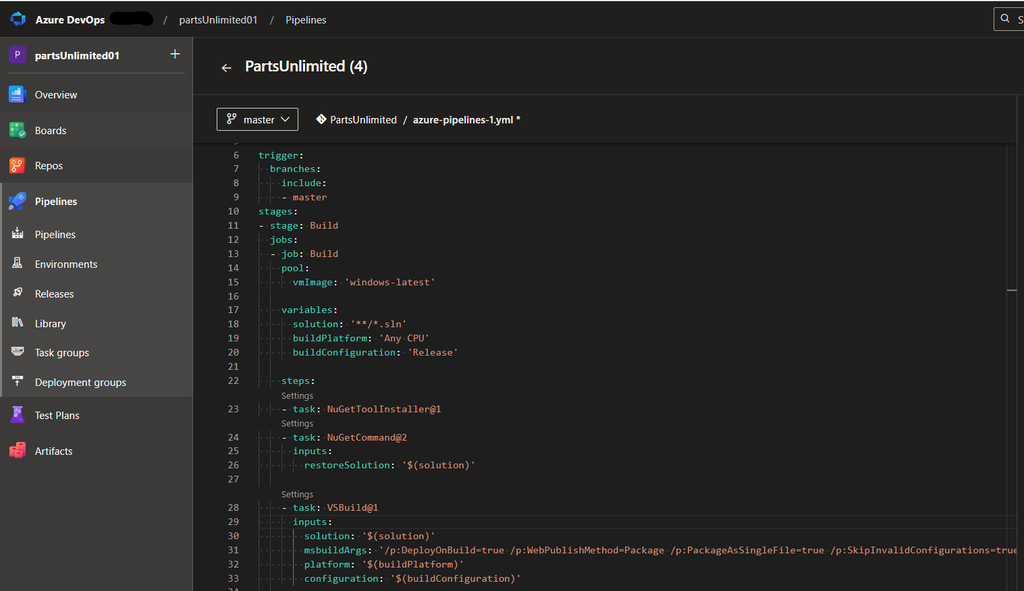
2. Upgrading the Legacy .NET Framework (MSB3644)
The default PartsUnlimited template is hardcoded to .NET Framework 4.5.1 and 4.6.1. Modern windows-latest pipeline agents no longer carry these older Developer Packs, causing an immediate MSB3644 build error.
Retarget the Application (Permanent Fix) Microsoft has officially ended support for .NET Framework 4.5.1 and 4.6.1. The best practice is to update the application’s source code to a supported version, such as 4.6.2 or 4.8.
- Navigate to your Azure Repos and locate the
.csprojfiles (e.g.,PartsUnlimited.csprojandPartsUnlimited.Models.csproj). - Edit the files and look for the
<TargetFrameworkVersion>XML tag. - Update the version string from
v4.5.1orv4.6.1to a modern version likev4.8. - Commit and push the changes to your repository. The pipeline will automatically trigger and build successfully using the modern agent.
XML
<TargetFrameworkVersion>v4.8</TargetFrameworkVersion>
The Chain Reaction
- Unit Tests (
PartsUnlimited.UnitTests.csproj): This project is still targeting v4.5.2. A v4.5.2 project cannot reference a newer v4.8 DLL, so it drops the reference entirely. Without that reference, the core classes (Controllers,Models,ViewModels, etc.) suddenly “vanish,” causing the massive wall ofCS0234andCS0246missing namespace errors. - Selenium Tests (
FabrikamFiber.SeleniumTests.csproj): This project is still explicitly asking for v4.6.1, which immediately throws the exact sameMSB3644missing Developer Pack error you saw initially.
The Fix
A Visual Studio Solution (.sln) requires all interdependent projects to run on compatible framework versions. You must update the remaining .csproj files to match your main project.
- Open
test/PartsUnlimited.UnitTests/PartsUnlimited.UnitTests.csprojin your repository. - Open
test/FabrikamFiber.SeleniumTests/FabrikamFiber.SeleniumTests.csproj. - Update the
<TargetFrameworkVersion>XML tag in both files tov4.8. - Commit and push the changes.
Once all projects in the solution are uniformly on v4.8, the MSBuild task will seamlessly compile the entire suite.
2. Fixing the Castle.Core & Moq Unit Test Crash
Upgrading to v4.8 creates a domino effect. The PartsUnlimited.UnitTests project will drop its references, throwing a wall of CS0234 missing namespace errors. Simultaneously, the Moq testing framework will crash with a System.IO.FileLoadException because it specifically expects Castle.Core v3.3.0.0, but the template includes v4.0.0.
To bypass the binding redirect failure, you must explicitly downgrade the Castle.Core package to exactly version 3.3.0 across the test project’s configuration files.
Here are the three files you need to update in the PartsUnlimited-aspnet45/test/PartsUnlimited.UnitTests/ directory:
- packages.config: Change the
Castle.Corepackage version string from"4.0.0"to"3.3.0". - PartsUnlimited.UnitTests.csproj: Locate the
<Reference Include="Castle.Core...">tag and update its<HintPath>to point to the3.3.0directory instead of the4.0.0directory (..\..\packages\Castle.Core.3.3.0\lib\net45\Castle.Core.dll). - app.config: Either delete the
<dependentAssembly>block forCastle.Coreentirely, or change thenewVersionattribute in the binding redirect from"4.0.0.0"to"3.3.0.0".
Once you commit these version changes, NuGet will restore the exact 3.3.0 assembly that Moq requires, and the unit tests will successfully execute.
XML
<Reference Include="Castle.Core, Version=3.3.0.0, Culture=neutral, PublicKeyToken=407dd0808d44fbdc, processorArchitecture=MSIL">
  <HintPath>..\..\packages\Castle.Core.3.3.0\lib\net45\Castle.Core.dll</HintPath>
</Reference>
3. Aligning YAML Pipeline Indentation
Azure Pipelines enforce strict YAML hierarchy rules. If your CI/CD pipeline fails to parse the deployment stages, ensure your pool, variables, and steps blocks are indented exactly two spaces underneath their respective job definitions, not floating at the root level.
YAML
stages:
- stage: Build
  jobs:
  - job: Build
    pool:
      vmImage: 'windows-latest'
    variables:
      solution: '**/*.sln'
    steps:
      - task: NuGetToolInstaller@1
5. Diagnosing Infinite Loading and 500 Errors
After the pipeline successfully deploys the zip package to your Azure App Service, browsing to the site often yields a generic 500 error or an infinite loading screen. By default, Azure App Services do not save application crash logs. You must enable diagnostic logging to see what is failing.
- Navigate to your App Service in the Azure Portal.
- Scroll to the Monitoring section and select App Service logs.
- Toggle Application Logging (Filesystem) to On and set the Level to Error. Use the File System option for immediate troubleshooting, as it feeds directly into the real-time log stream without requiring an external Azure Storage account.
- Toggle Web server logging to On and click Save.
- Select Log stream from the left menu and refresh your website. Watch the terminal for real-time exceptions or SQL timeouts.
If the application crashes before the code even finishes loading, it will not appear in the standard log stream. Scroll down to Advanced Tools, launch the Kudu CMD terminal, navigate to the LogFiles folder, and inspect eventlog.xml for deep application pool crashes.
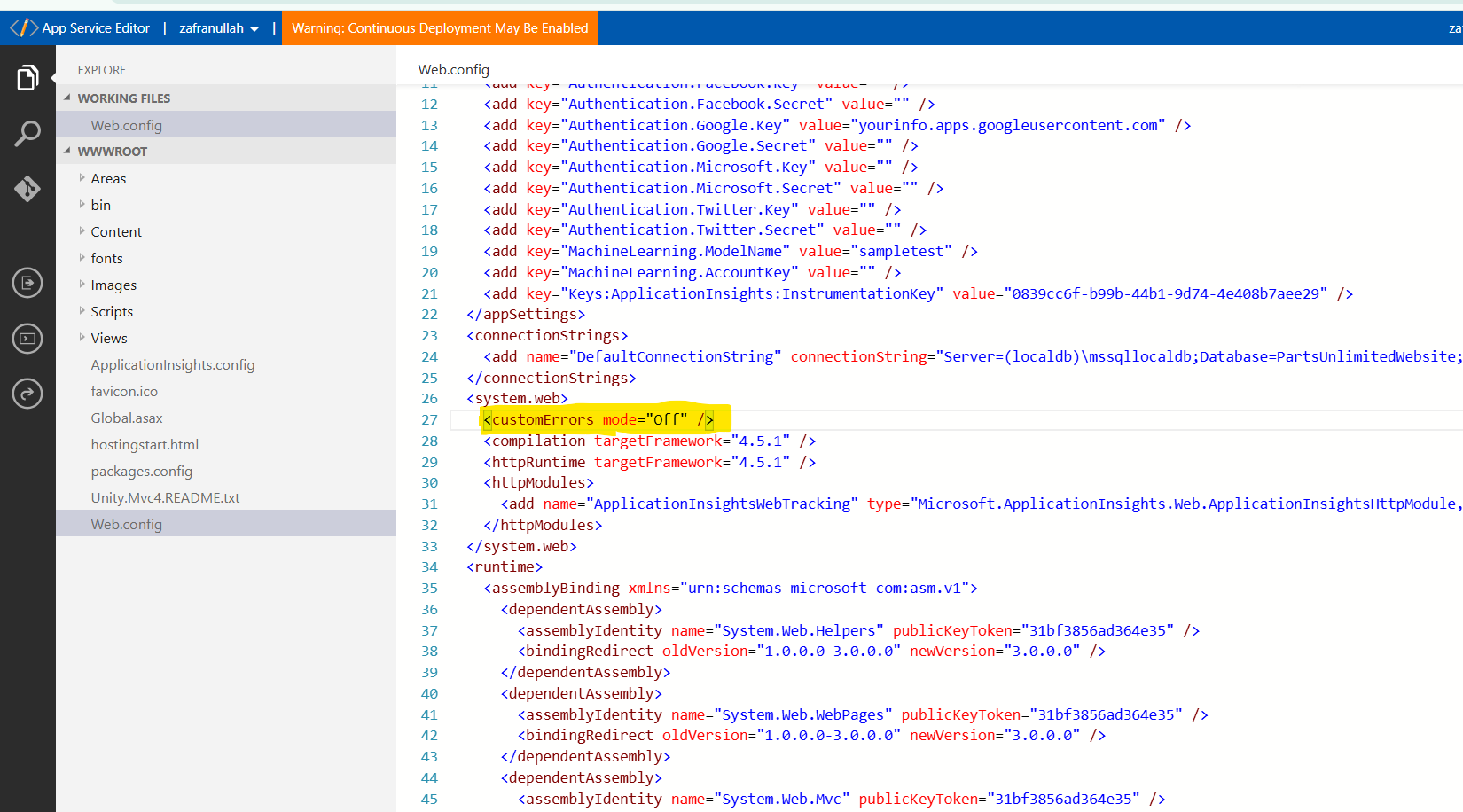
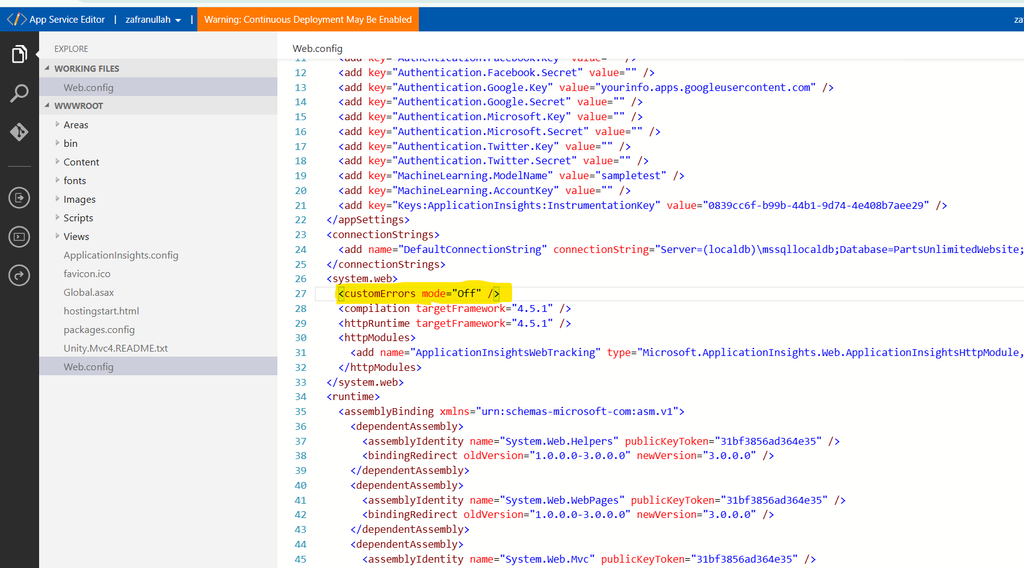
6. Exposing the Yellow Screen of Death (YSOD)
If you see a generic Runtime Error stating that custom error settings prevent details from being viewed, ASP.NET is actively hiding the stack trace for security reasons.
- Open the App Service Editor (Preview) under the Development Tools menu.
- Expand the
WWWROOTdirectory and openWeb.config. - Search for the
<system.web>block and add or update the custom errors tag:
XML
<customErrors mode="Off" />
- The editor saves automatically. Refresh your website tab to replace the security warning with the detailed stack trace.
7. Fixing the LocalDB Connection String Crash
With custom errors disabled, the PartsUnlimited template typically reveals a System.ComponentModel.Win32Exception tied to a SQL Network Interface error (Error 52). The legacy code is attempting to connect to a Local Database Runtime (LocalDB), which is not supported in Azure App Service environments.
You must explicitly inject your Azure SQL database credentials into the App Service:
- Go to Environment variables (or Configuration) in your App Service settings.
- Under the Connection strings tab, add a new entry named
DefaultConnectionString(the code explicitly looks for this exact name). - Paste your full Azure SQL connection string:
Server=tcp:<your-db-server>.database.windows.net,1433;Initial Catalog=<your-db-name>;User ID=<your-username>;Password=<your-password>;Encrypt=True;Connection Timeout=30; - Set the type to SQLAzure and click Save. The App Service will automatically restart.
8. Surviving the Serverless Auto-Pause (Cold Start)
Once the connection string is mapped, you might encounter one final crash: SqlException: Database 'partsunlimited-yaml' on server '...' is not currently available.
While this looks like a fatal routing error, it is usually a symptom of Azure’s Serverless compute architecture.
- Serverless Auto-Pause: To save money, serverless Azure SQL databases pause during inactivity. The first web request to a sleeping database always throws this availability error while the compute resources spin back up. Wait 60 seconds and refresh the page.
- Database Does Not Exist: Verify you actually created a blank database named
partsunlimited-yamlon your SQL server so Entity Framework can execute its table migration scripts. - Firewall Blocks: Open your SQL Server’s Networking settings and ensure Allow Azure services and resources to access this server is checked so the App Service is not blocked at the perimeter.
If the exposed error is a System.Data.SqlClient.SqlException, you are likely hitting a Serverless auto-pause cold start. Azure SQL Databases on the Serverless compute tier pause during inactivity. The first web request times out while the compute spins back up. That happened in my case as well so wait for 60 seconds, and refresh the page to allow Entity Framework to execute its migrations.