
If you’ve ever set up NVIDIA vGPU with a Delegated License Service (DLS) server, you know that when it works, it’s magic. But when it doesn’t, the logs can send you down a deep rabbit hole. Recently, I ran into a licensing issue that completely throttled our GPU performance, and the root cause ended up being embarrassingly simple.
Here is a quick write-up of the symptoms, the investigation, and the ultimate “facepalm” solution in hopes that it saves another admin some time.
The Environment
Before diving into the issue, here is a quick look at the environment where this occurred:
| Component | Detail |
| Client Machine | Windows Server 2022 |
| License Server | NVIDIA DLS (Delegated License Service) – Offline |
| Communication Port | TCP 443 (HTTPS) |
The Symptoms
Everything seemed fine until users started reporting terrible graphics performance on their VMs. I checked the Windows Server 2022 client, and sure enough, the GPU was operating in a degraded state.
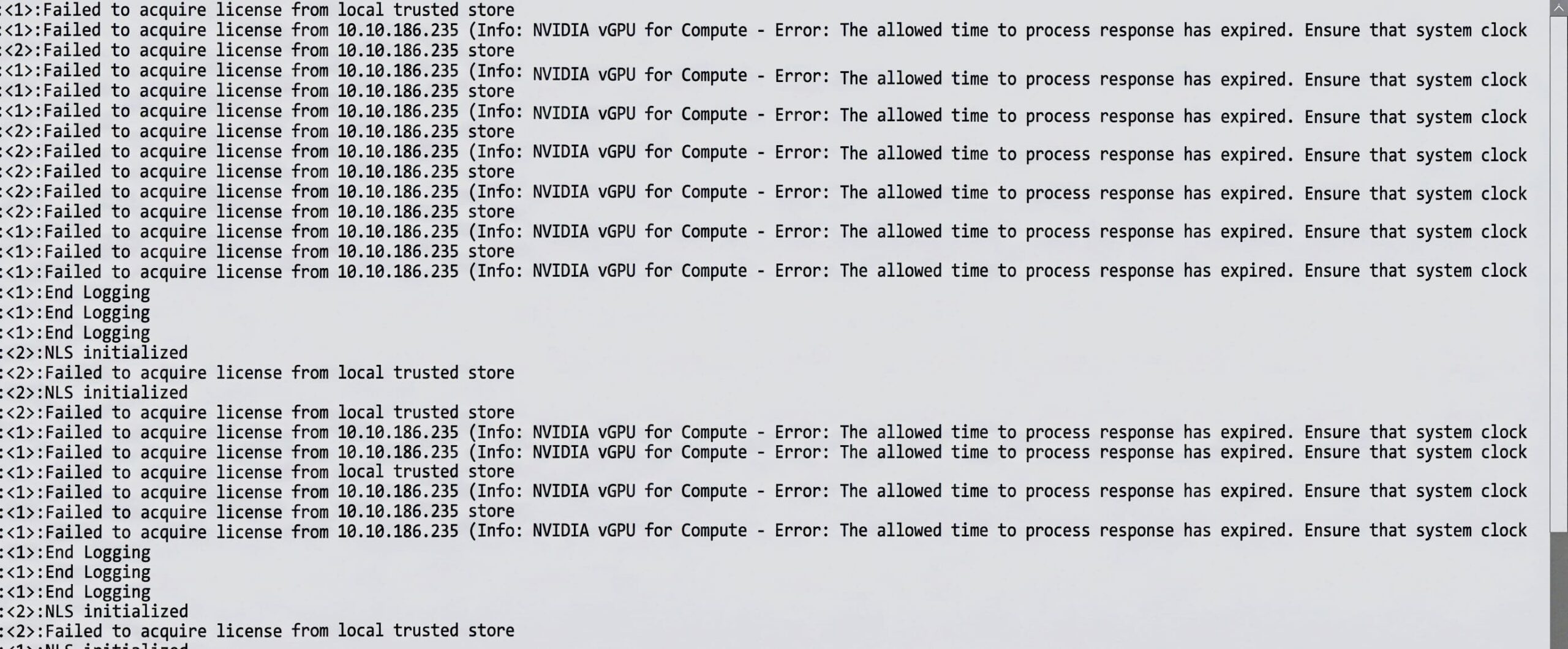
I dove into the NVIDIA licensing logs located at C:\Users\Public\Documents\NvidiaLogging\Log.NVDisplay.Container.exe and was greeted by a massive wall of errors.
The first repeated error was:
Failed to acquire license from <IP_Address> (Info: NVIDIA vGPU for Compute - Error: The allowed time to process response has expired. Ensure that system clock...
Followed shortly by the dreaded:
Valid GRID license not found. GPU features and performance will be restricted. To enable full functionality please configure licensing details.
The Investigation
The error explicitly mentions the system clock and an expired allowed time for processing the response. In the world of DLS and licensing tokens communicating over port 443, the server and the client need to be tightly synchronized. If the timestamps on the client’s license request and the server’s response are too far apart, the client rejects the license to prevent spoofing or replay attacks.
My immediate thought was a major NTP (Network Time Protocol) failure.
- Were the client and offline DLS server pointing to different time servers?
- Was the DLS appliance drifting?
- Were there any firewall rules acting up?
I checked the DLS appliance and the Windows client. The minutes matched perfectly. The date was exactly the same. I spent a good chunk of time troubleshooting network connectivity, re-generating client configuration tokens, and restarting the NVDisplay.Container service, assuming a ghost in the machine.
The “Aha!” Moment
I looked at the system tray clock on the Windows VM again, and then checked the output of the date command on the Linux-based DLS appliance.
- Client VM (Windows 2022): 07:29 PM
- DLS Server: 07:29 AM
Cue the facepalm.
Because I was focusing so heavily on the minutes matching up and assuming an NTP drift issue, I completely glazed over the 12-hour offset. The offline DLS server was exactly 12 hours out of sync with the client because of a simple AM/PM configuration mismatch. The NVIDIA client saw a 12-hour gap in the license handshake and immediately rejected it for being expired.
The Fix
The fix was incredibly straightforward:
- Correct the time/timezone settings on the server to match the correct 24-hour reality.
- Ensure both the DLS appliance and the client are actively syncing to the same reliable NTP source to prevent future drift.
- Restart the NVIDIA Display Container service on the client.
Instantly, the logs showed a successful license acquisition, and full GPU performance was restored.
The Takeaway
When security certificates, kerberos tickets, or licensing tokens fail with time-sync errors, don’t just check the minutes—check the hours, the timezone, and the AM/PM flags! Better yet, configure all your infrastructure servers to use a 24-hour clock format. It might just save you from an afternoon of unnecessary troubleshooting.
Quick Reference: Troubleshooting Paths & Services
If you run into this yourself, here are the vital paths and services you’ll need on a Windows client:
| Component | Description | Path / Service Name |
| Client Log File | The primary log file that records vGPU licensing attempts, time sync errors, and connection statuses. | C:\Users\Public\Documents\NvidiaLogging\Log.NVDisplay.Container.exe |
| Client Token Directory | The folder for the Client Configuration Token (.tok file) downloaded from the DLS server. | C:\Program Files\NVIDIA Corporation\vGPU Licensing\ClientConfigToken\ |
| Windows Service | The service responsible for communicating with the DLS server. Restart this to force a new license acquisition attempt. | NVDisplay.ContainerLocalSystem |
To restart the service via Command Prompt (Admin):
net stop NVDisplay.ContainerLocalSystem
net start NVDisplay.ContainerLocalSystem